Getting your crew signed on
Share the SWMS by QR code, link or email.
Share the SWMS
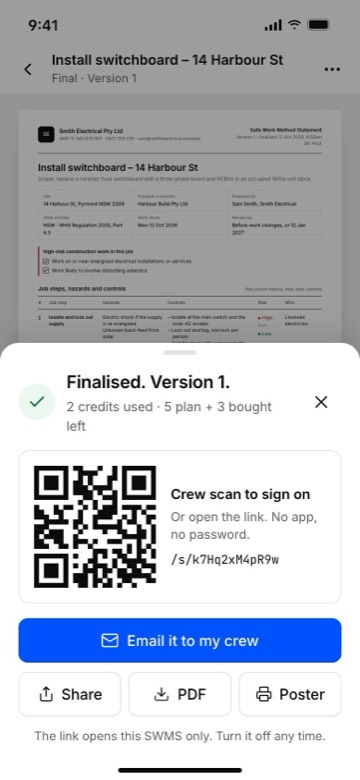
After you finalise, the share sheet opens. Your crew can reach the SWMS three ways:
- QR code: print the poster or show the code on your phone. Workers scan it with their phone camera.
- Link: tap Share to send the link by text message or any app.
- Email: tap Email it to my crew and enter their addresses. We send the invite on your behalf, naming your business.
Workers don't need an app, an account or a password. The link opens this SWMS only.
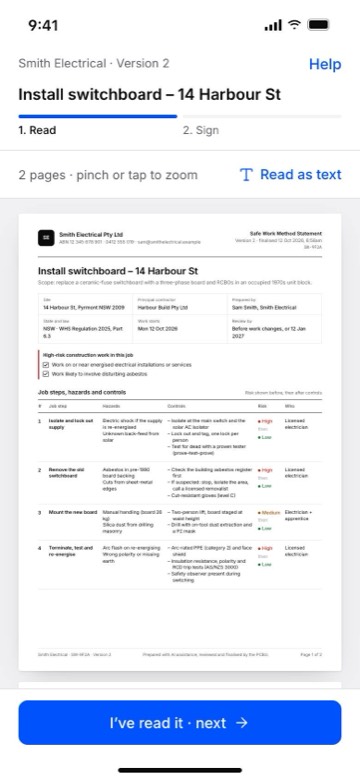
What your worker sees
The worker reads the SWMS on their phone. They can pinch to zoom the pages or switch to Read as text. When they've read it, they tap I've read it · next.
The first time, they enter their name (this is also their typed signature), and optionally their company and contact. The screen tells them what we record and who we share it with. They tick the box and tap Sign on. Their phone can remember their details for next time.
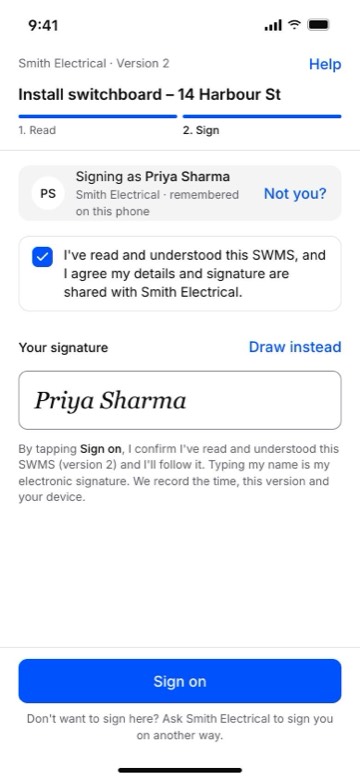
If a worker doesn't want to sign on their phone, sign them on another way (for example on paper) and keep that with your records.
See who has signed
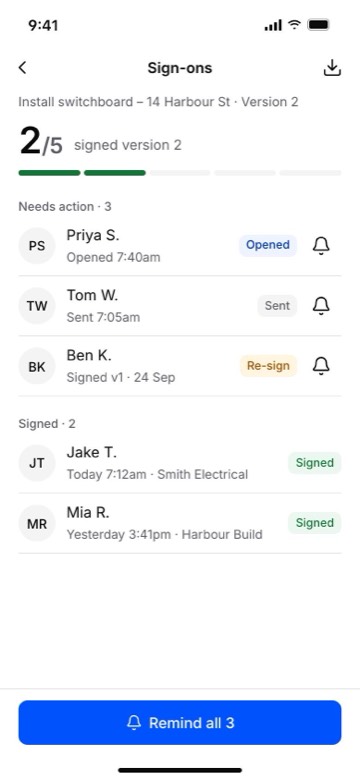
Open the SWMS and tap Sign-ons to see who signed, which version and when. You can download the sign-on register as a PDF at any time.
Reminders
For email invites, you can send a reminder to people who haven't signed yet. We send at most two reminders per invite, and anyone can opt out of your emails.
Turning a link off
The link keeps working while the SWMS is in use. To stop it, open the SWMS, tap Link and turn it off, or make a new link. Old printed QR posters stop working when you do.