Making your first SWMS
Describe the job, check the draft, finalise it.
1. Say what the job is
On the home page, type the job in the box: the trade, the task, where it is and anything unusual on site. For example: "Replace old switchboard in a 1970s unit block, Pyrmont NSW". Then tap Start my SWMS. Sign in with the code we email you, and your job is waiting.
You can also pick your trade and a common task, or speak the job if voice input is on.
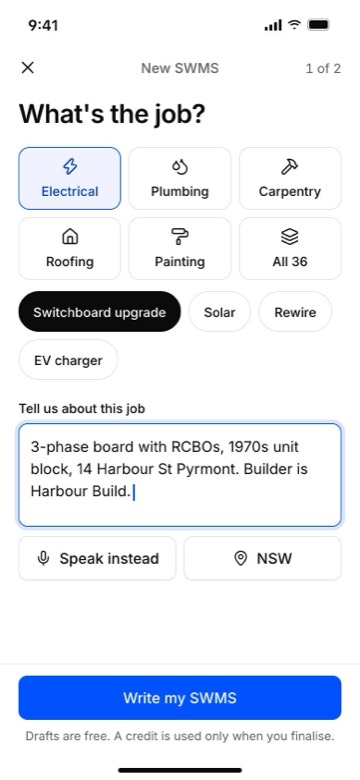
2. Watch it write
OneClickSWMS drafts the document on the page: the job details, the high-risk construction work for your state, the job steps, hazards and controls, PPE and the emergency plan. You can leave the screen; it keeps writing and saves as it goes.
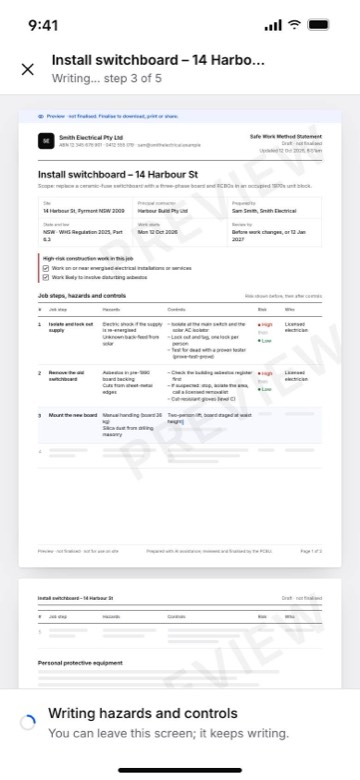
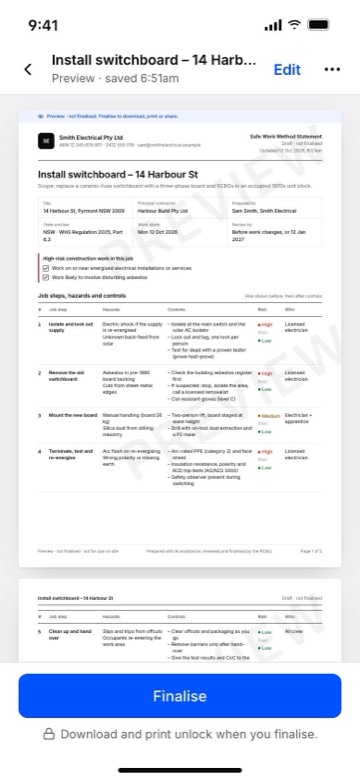
3. Check every part
The draft is a starting point, not the final word. Read each step and ask:
- Does it match this job and this site?
- Are the hazards the ones your crew will actually face?
- Will the controls work here, with your equipment?
Tap Edit to change anything, add your own controls, or remove steps that don't apply. Changes save as you go. Drafts and edits are free.
4. Finalise
When it's right, tap Finalise. The screen shows the cost (a standard SWMS uses 1 credit, a complex one 2) and why. Tick the review box to confirm you've checked it for this job and site and you'll talk it through with your workers. It becomes version 1 and is locked; later changes make a new version for free.
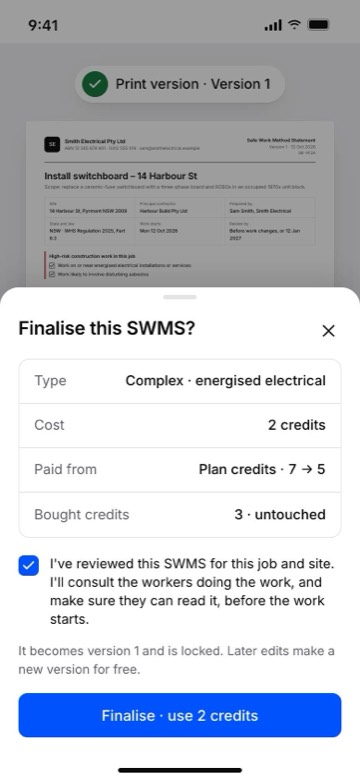
If you don't have credits, you'll be asked to choose a plan or buy credits, and the SWMS finalises after payment.
Before work starts
Talk the SWMS through with the workers doing the job, and change it if they raise something. Then share it with your crew so they can read and sign it. See Getting your crew signed on.